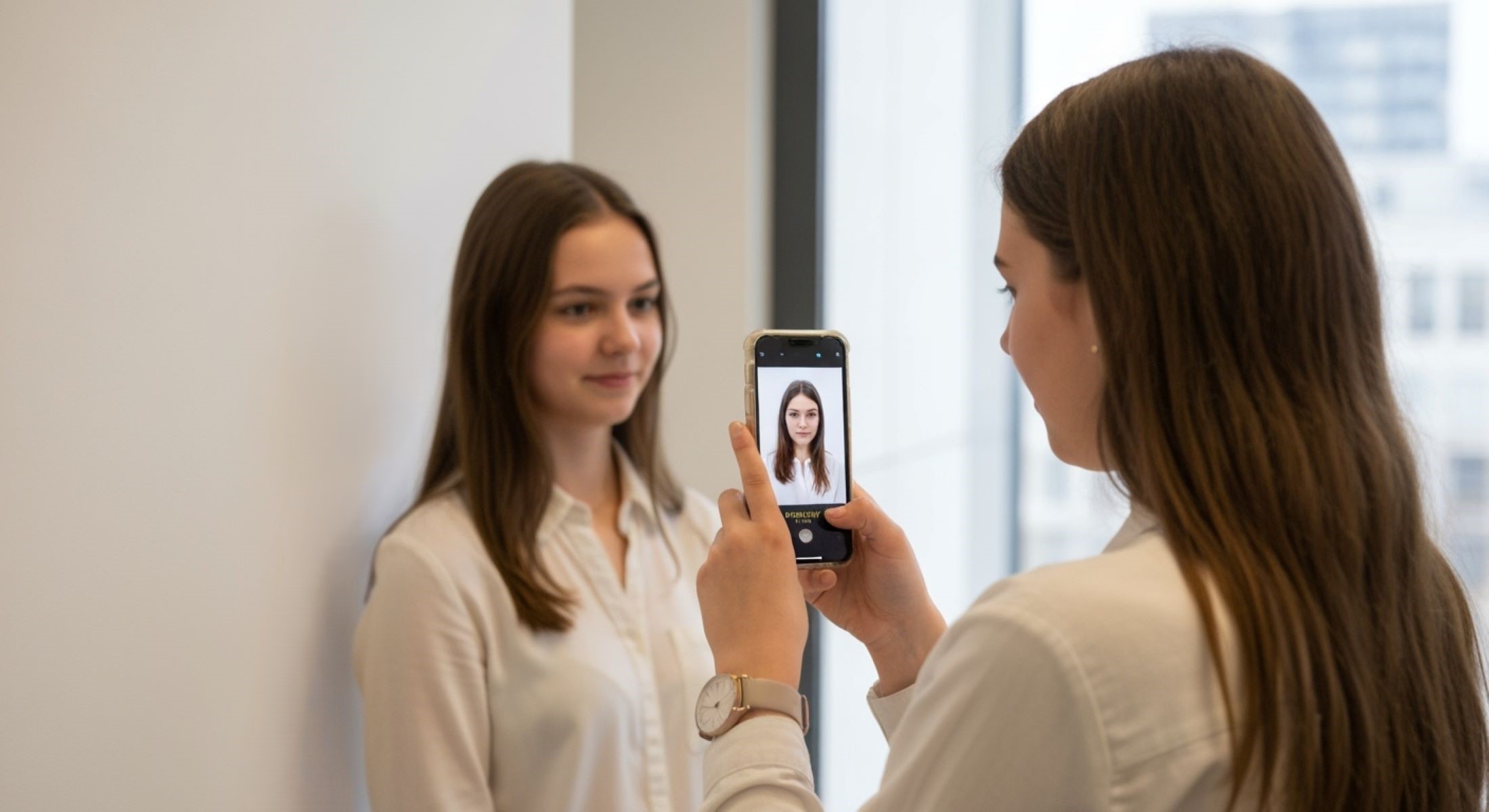
If you’ve ever applied for a passport, visa, or government ID, you know they don’t just want any photo—they want it just right. One of the most commonly requested photo dimensions is 35×45 mm. It’s the go-to size for many official documents in various countries, including some visa applications for the U.S. and Europe.
Key Features to Look for in a Photo Formatting Website
User Interface and Ease of Use
When looking for a website to format your photo to 35×45 mm, the first thing you want to consider is how easy the site is to use. Many people who need passport or visa photos aren’t necessarily tech-savvy. The best websites are designed with simplicity in mind—clear menus, intuitive instructions, and minimal steps. Features like drag-and-drop upload, auto-cropping, and visual alignment guides make the process almost foolproof, even for those unfamiliar with editing tools. If you have to click through ten confusing options just to get started, that’s not the site for you.
Output Quality and DPI Settings
One of the most overlooked aspects of formatting a photo is the resolution, specifically the DPI (dots per inch). For passport and visa photos, especially in the United States, the gold standard is 300 DPI. This ensures that your image prints clearly without any pixelation or blurriness. Low-quality images may look fine on your phone but can be instantly rejected when printed or submitted digitally to government agencies.
A good photo formatting site will allow you to download high-resolution images, preserving clarity and compliance. It should also maintain the correct aspect ratio so the image isn’t stretched or squashed. Avoid sites that compress your image too much, as this can ruin the fine details of your face, which are crucial for biometric verification. In short, always check that the final download maintains high DPI and crisp quality—this small detail can make a big difference.
File Formats and Download Options
In the U.S., most digital applications and printing services accept JPEG or PNG formats. A solid photo formatting site should give you the option to download in at least one of these formats. Whether you plan to submit the image online or take it to a Walgreens or CVS for printing, having a compatible file format is essential. Look out for sites that allow multiple download sizes too—some offer a full 4×6 layout with multiple 35×45 mm images ready to print.
Also, check if the website watermarks your photo or restricts downloads unless you pay. A great free service should provide a clean image without forcing you into a paid tier. Bonus points if the website lets you adjust brightness, contrast, and background before downloading. If a site lets you preview the final image and then download it instantly in the right file type, you’ve struck gold.
Top Free Websites to Format a Photo to 35×45 mm
IDPhoto4You
Features
- Supports multiple countries and photo sizes
- Auto-cropping tools for proper face alignment
- Adjustable background and brightness settings
IDPhoto4You is one of the most popular free tools for creating passport-sized photos. It’s particularly useful for American users needing photos for visas, IDs, and other official documentation. With support for 35×45 mm dimensions and a user-friendly interface, this tool is excellent for quick formatting. The site also allows you to fine-tune background colors, brightness, and even eye-level position—all critical for photo compliance.
You can choose your country and preferred photo size from the dropdown, and the tool will apply the right dimensions automatically. It’s designed to help you meet the official requirements without needing Photoshop or advanced editing skills. That makes it ideal for users who want results in minutes without going through complex steps.
Pros:
- Extremely easy to use with guided steps
- Produces high-resolution (300 DPI) images
- No account or sign-up required
Cons:
- Website design is outdated
- Doesn’t offer AI enhancements or auto-background removal
How to Use It
- Visit IDPhoto4You
- Upload your photo
- Select your country and size (35×45 mm)
- Adjust cropping and background
- Download your formatted photo
PersoFoto
Features
- Allows full custom sizing, including 35×45 mm
- Manual background editing options
- Visual guidelines for head and eye positioning
PersoFoto is another top-tier choice for creating ID photos, especially if you need a bit more control over the image alignment. It offers helpful overlays to ensure your head is the correct size and positioned properly—something required for U.S. visa applications. The platform also offers basic tools for adjusting the background color and lighting, which can be useful if your original photo doesn’t meet strict government standards.
This tool is particularly useful for perfectionists or anyone formatting a photo for embassy use. While some features are behind a paywall (like high-definition downloads), the free version works well if you take a screenshot or print directly from the browser. It’s a great balance between functionality and ease of use.
Pros:
- Highly accurate for photo compliance
- Intuitive interface with visual cropping guides
Cons:
- Free download resolution is limited
- Screenshot workaround may reduce quality
How to Use It
- Go to PersoFoto
- Upload your image
- Set custom size to 35×45 mm
- Align your face using the on-screen guides
- Screenshot or pay for a high-resolution download
MakePassportPhoto.com
Features
- 100% free tool—no signup needed
- Automatically resizes photo to selected dimensions
- Simple interface with one-click cropping
MakePassportPhoto.com is perfect for users looking for a hassle-free experience. It automatically detects your face and resizes the photo to 35×45 mm with minimal input. It’s not packed with fancy features, but if you just want to upload, crop, and download in a few clicks, this is your go-to. It also provides a printable version of your photo in 4×6 format, so you can easily print it at home or a pharmacy.
However, don’t expect advanced options like AI face positioning or background removal. This tool is designed for speed and simplicity, and that’s where it shines. For casual use or basic ID needs, it’s more than sufficient.
Pros:
- Fast, intuitive, and free
- Good image quality for most needs
Cons:
- No background editing options
- Some intrusive ads may affect user experience
How to Use It
- Head to MakePassportPhoto.com
- Upload your photo (no account needed)
- Auto-crop to 35×45 mm format
- Download the formatted image
How to Format Your Photo to 35×45 mm (Step-by-Step Guide)
Formatting your photo to 35×45 mm might sound technical, but it’s actually pretty simple if you follow the right steps. Whether you’re preparing an image for a visa application, ID badge, or another official document in the United States, this guide will walk you through everything—from choosing the right tool to getting a high-quality print.
| Step | What to Do | Why It Matters | Pro Tips |
| Choose a Website | Pick a platform that suits your needs (simple UI, editing tools, free download) | Ensures a smooth experience and accurate formatting | Look for sites like IDPhoto4You or MakePassportPhoto |
| Upload Your Photo | Use a high-resolution image with a neutral background | Poor quality or cluttered backgrounds may lead to rejection | Natural lighting works best—avoid harsh shadows |
| Crop and Adjust | Align your face with the guidelines, adjust brightness or background if needed | Compliance with official dimensions and facial positioning rules | Use auto-crop and face alignment tools when available |
| Download and Print | Save your image as JPG or PNG, and print at 300 DPI | Guarantees sharp, professional-looking results for applications | Use a quality printer or go to CVS, Walgreens, or Walmart |
Choose a Website from the List
The first step in formatting your photo to 35×45 mm is choosing the right website. This might depend on how comfortable you are with technology. If you prefer a simple, no-frills interface, go with MakePassportPhoto.com. It does most of the work for you and requires zero technical knowledge. On the other hand, if you’re looking for more control—like adjusting the background or fine-tuning your face position—PersoFoto or IDPhoto4You are great options.
It’s important to choose a website that aligns with your specific goals. For example, if your photo is for a U.S. visa application, accuracy and resolution are key. Look for a platform that clearly states it supports 35×45 mm formatting and offers tools to help you crop, align, and check facial positioning based on biometric standards. The right tool saves time and ensures you won’t need to redo everything later.
Upload Your Photo
Once you’ve chosen a platform, it’s time to upload your photo. Make sure the image you’re uploading is high resolution—ideally from a recent smartphone or DSLR camera. Stand in front of a plain white or light-colored background. Use natural lighting if possible; standing near a window works well. Make sure there are no harsh shadows or overexposed areas on your face.
Position your camera at eye level and make sure your entire head and shoulders are in the frame. Avoid selfies or angled shots. The best photos are taken by someone else or using a tripod. No filters, no heavy makeup, and definitely no facial expressions. A clear, front-facing image is not only a requirement for official documents—it also helps the online tool properly detect your facial features for automatic cropping.
Crop and Adjust
Now comes the most important part: cropping and adjusting. Good formatting tools will show you guidelines or boxes to help align your eyes, nose, and chin correctly. In U.S. visa photos, for example, your eyes must be between 28–35 mm from the bottom of the image. Most websites like PersoFoto and IDPhoto4You automatically guide you to stay within those margins.
This is also the time to make small adjustments to lighting, contrast, or background if the site allows it. Be careful not to over-edit—your image should still reflect your natural appearance. Don’t zoom in too much, and make sure there’s a bit of space around your head and shoulders. Over-cropping can lead to rejection, especially when precise facial ratios are required.
Download and Print
After cropping and finalizing the image, download it in a compatible format like JPG or PNG. Make sure the file is high resolution (at least 300 DPI) if you plan to print it. Most websites offer a print layout (usually 4×6 inches) with multiple 35×45 mm images arranged on one sheet. This format is perfect if you’re printing at a local store like Walgreens, CVS, or Walmart.
If you have a quality printer and photo paper at home, you can print it yourself. Just make sure your print settings are correct—select the “actual size” option to avoid any auto-scaling. Whether you print at home or use a store kiosk, double-check that the final photo meets the specifications before submitting it. It’s always worth printing a test version first.
Common Mistakes to Avoid When Formatting a Photo
Using the Wrong DPI
One of the most common and costly mistakes is downloading or printing your photo at the wrong DPI. DPI, or dots per inch, directly impacts how sharp and clear your photo appears when printed. For official U.S. documents like visas or work permits, a 300 DPI resolution is typically required. Anything less may result in blurry or pixelated images that can lead to automatic rejection by digital screening systems or embassy personnel.
Always double-check the settings when saving or printing your image. Some websites will reduce the DPI to save bandwidth or speed up downloads, especially on free tiers. If the site offers a “print quality” or “high resolution” option, always choose it—even if it takes a few more seconds to process. Your goal is clarity and compliance, and using the correct DPI is step one in that direction.
Poor Lighting or Background
Lighting plays a massive role in whether your photo looks professional or amateur. Shadows on the face or background, uneven lighting, or too much brightness can all affect how your image is processed. Poor lighting may hide facial details, and that can be a problem for biometric scanning. Try to take your photo during the day using natural light—stand a few feet from a window to get soft, even illumination on your face.
Backgrounds should be plain—ideally white or light gray. Textures, objects, or even slightly patterned walls can distract from your face and cause your image to be rejected. If you can’t get a perfect background, some sites let you change or soften it. But ideally, your original photo should already meet the lighting and background requirements, so minimal editing is needed.
Incorrect Face Positioning
Many people overlook how crucial face positioning is in official photos. If your eyes aren’t level, your face is tilted, or you’re too far from the camera, your image may not meet U.S. visa photo guidelines. The face must be centered, and your expression should be neutral—no smiles, frowns, or raised eyebrows. Sunglasses, hats, or hair covering your eyes? All of that’s a no-go.
Use the tools provided by the photo formatting website. Most include facial alignment grids or indicators to help you center your face correctly. Make sure your eyes are within the recommended vertical range and that there’s not too much or too little space above your head. Getting this part right saves you the frustration of having your application delayed or rejected due to something easily avoidable.